wkgtk-html2pdf is a powerful and easy-to-use API for converting HTML content into high-quality PDF documents using WebKitGTK. Developed as a modern alternative to legacy tools like wkhtmltopdf—which has been archived since 2023—this project fills the gap for reliable, up-to-date HTML-to-PDF conversion. It provides a clean, intuitive C++ API that simplifies HTML generation by eliminating the need for string literals and explicit closing tags, making it ideal for embedding in applications. The tool supports advanced features such as internal anchors, links, and nested sidebar indexing, enabling the creation of structured, navigable PDFs. A simple command-line interface is also available for quick, one-off conversions. With its focus on maintainability and modern development practices, wkgtk-html2pdf is designed to be a reliable choice for developers seeking a dependable solution for PDF generation.
This project is entirely inspired by wkhtmltopdf as when we were searching for a replacement we simply could not find one, and even the paid for options seemed overly complex where they needn't be and severely lacking where they should. We have tried to iron out some of the issues we have encountered along the way and have produced this manual to assist with those unavoidable issues that must be worked around. We hope that you find this project useful and we would be very much appreciative of any contribution, be that funding, documentation, testing, or design.
wkgtk-html2pdf includes a set of built-in, pre-configured CSS templates for all standard ISO and US paper sizes, ensuring compatibility and consistency across different regions and use cases. These templates are designed to prevent the generation of extraneous blank pages by precisely defining page dimensions, margins, and layout constraints using CSS custom properties.
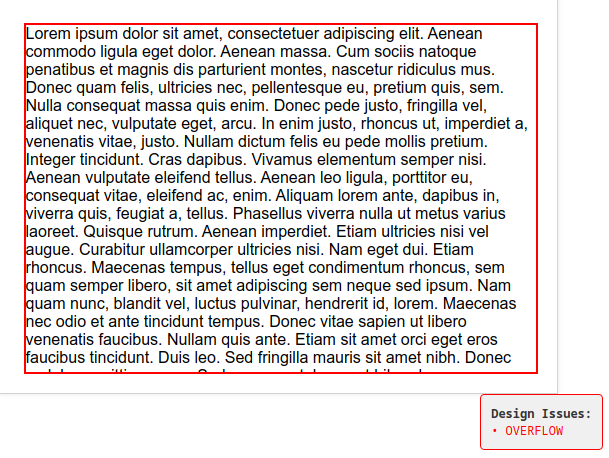
Each template uses a clean, modular structure with variables for page width, height, and margin, allowing for easy customization while maintaining reliable output. A lightweight JavaScript utility is included to monitor content overflow in real time—when content exceeds the available space, the subpage border turns red; when it fits perfectly, the border turns green. This visual feedback helps you quickly identify and resolve layout issues before conversion.
The templates also include print-specific CSS rules that ensure clean, artefact-free output when the HTML is rendered to PDF, while maintaining visual guides during development for easier debugging and refinement.
In wkgtk-html2pdf we have endeavoured to create a system that does not require you to learn additional languages; all you should need is a reasonable understanding of HTML.
This manual is a self fulfilling prophecy as it is developed entirely using wkgtk-html2pdf so the layout the code that is used to write it is in itself a tutorial. If you are uncertain about how something is done then is worth reviewing the HTML and CSS used to generate it.
Unlike many wrapper libraries that expose internal dependencies to the host application, wkgtk-html2pdf is engineered with a strict Binary Interface (ABI). We utilize the Pimpl (Pointer to Implementation) idiom throughout the C++ API to create a "firewall" between the library's internal logic and your application. This tedious but essential design choice provides several critical benefits:
The CLI is the simplest way to get started with wkgtk-html2pdf. It allows you to convert HTML files into PDFs with minimal setup.
To generate a PDF using the default settings use the following command:
html2pdf -i input.html -o output.pdf
The following options are available for the cli.
| Option | Description |
|---|---|
| -h, --help | Display the help message with all available options. |
| -v, --verbose | Set the log level (1-7), with higher values providing more detailed output. Logs are written to the system journal. |
| -i, --infile | Specify the source HTML file to convert. |
| -o, --outfile | Specify the output PDF file name. |
| -O, --orientation | Set page orientation: portrait or landscape. |
| -s, --size | Set the page size (Default A4) |
| - ISO (A): A0, A1, A2, A3, A4, A5, A6, A7, A8, A9, A10 | |
| - ISO (B): B0, B1, B2, B3, B4, B5, B6, B7, B8, B9, B10 | |
| - ISO (C): C0, C1, C2, C3, C4, C5, C6, C7, C8, C9, C10 | |
| - US: Letter, Legal, Tabloid | |
| - ANSI: ANSIA, ANSIB, ANSIC, ANSID, ANSIE | |
| - Architectural: ArchA, ArchB, ArchC, ArchD, ArchE | |
| - Other: SRA0, SRA1, SRA2, SRA3, SRA4 | |
| --index | Create anchor points for indexing: classic or enhanced for nested sidebar indexing. |
| -r --relative-uri | look for resources such as images in, or relative to, the current working folder. |
To generate a clean, professional PDF, you must optimize your HTML to ensure it aligns with the desired page size and layout. The output is entirely governed by the CSS and HTML structure, so the quality of the final PDF depends on how well your content is designed.
<link rel="stylesheet" href="/usr/share/wk2gtkpdf/A4-portrait.css">
<div class="page">
<div class="subpage">
<!-- Your page content here -->
</div>
</div>
This script provides real-time feedback, helping you identify and fix layout issues before conversion (See Section 6.2).
<script src="/usr/share/wk2gtkpdf/overflow-monitor.js><script>
While web design traditionally relies on pixels (px), high-stakes typesetting and desktop publishing require points (pt).
The primary reason for this distinction is sub-pixel rounding. Because a physical screen cannot render "half a pixel," the engine must round fractional values up or down. In standard HTML-to-PDF generators, these tiny rounding errors accumulate over a large document, causing significant "creep" where content shifts further out of alignment with every passing page.
Our bundled templates are specifically engineered to isolate these rounding issues to the individual page level, preventing cumulative drift. However, to achieve a document that is truly pixel-perfect and indistinguishable between the Linter Viewer and the final PDF, you should always define measurements in points. Using points bypasses the browser's display scaling and ensures your layout remains 1:1 with the physical print dimensions.
The Conversion Rule: To convert your existing web measurements to the required print standard, simply multiply any pixel value by 0.75 (e.g., 16px * 0.75 = 12pt).
By designing your HTML and CSS carefully, you have full control over the final PDF output. Avoid common issues: Mismatched stylesheets, incorrect classes, or content overflow can lead to blank pages, cut-off content, or incorrect scaling.
The overflow detection script helps you identify and fix layout issues before conversion.
Below is a minimal, single-page example utilizing the built-in overflow monitor and missing-font detector.
<!DOCTYPE html>
<html>
<head>
<link rel="stylesheet" href="/usr/share/wk2gtkpdf/A4-portrait.css">
</head>
<body>
<div class="page">
<div class="subpage">
<h1>My Document</h1>
<p>This content will be rendered in A4 portrait format.</p>
</div>
</div>
</body>
<script src="/usr/share/wk2gtkpdf/overflow-monitor.js><script>
</html>
Each declaration of a .page and .subpage container will create a new page. Blank pages can also be inserted by declaring a .page and .subpage container.
wkgtk-html2pdf offers two indexing modes to generate the PDF sidebar navigation: Classic and Enhanced.
In Classic mode, the engine automatically scrapes all internal anchors (any <a> tag where the href starts with #) and includes them in the PDF index. This is ideal for simple documents where every link is a significant navigation point.
<!-- Automatically indexed in Classic Mode -->
<li><a href="#reference">Reference</a></li>
<p><a href="#section1">Section 1</a></p>
<div><a href="#appendix">Appendix</a></div>
Enhanced mode (--index enhanced) is a professional-grade feature that allows for selective indexing. Only elements explicitly marked with the index-item class,class will appear in the PDF sidebar. This prevents "index noise" in documents with many internal cross-references.
<!-- This will be included -->
<li class="index-item"><a href="#reference"><span>Reference</span><span>A1</span></a></li>
<!-- This will be ignored -->
<p><a href="#section1">Section 1</a></p>
<!-- This will be included (container type doesn't matter) -->
<div class="index-item"><a href="#appendix">Appendix</a></div>
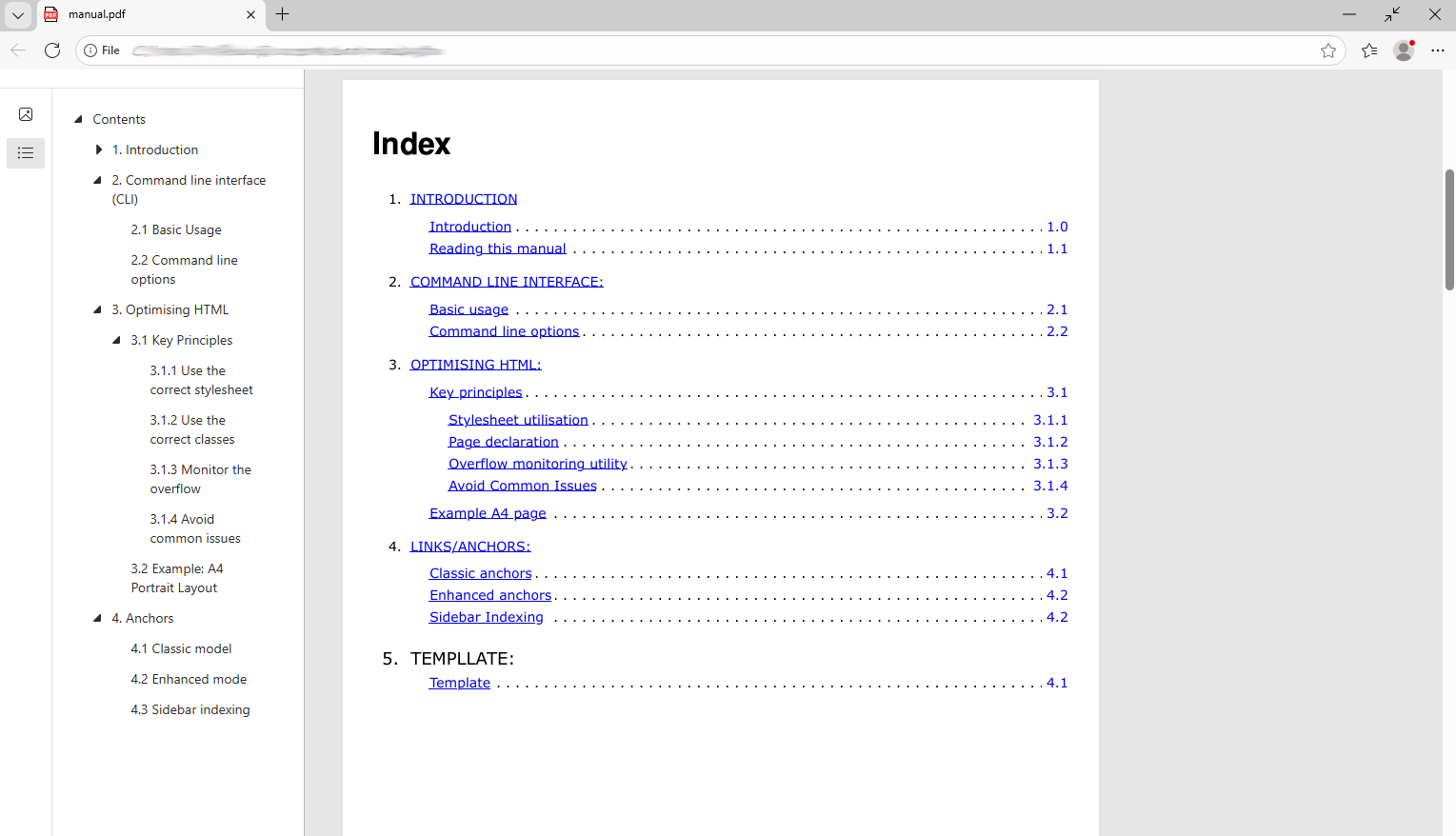
Most users of technical manuals rely heavily on the PDF sidebar (bookmarks) for navigation. This persistent tree structure is far more practical for digital consultation than a traditional printed index page. Regardless of whether you choose Classic or Enhanced mode, wkgtk-html2pdf automatically constructs a hierarchical sidebar by analysing your HTML structure.
A unique feature of the wkgtk-html2pdf engine is its ability to generate an index from a visible Single Source of Truth. Unlike traditional generators that rely on "header scraping" or hidden metadata declarations, our engine builds the navigation tree directly from the visible numbering system within your document.
By using the section numbers as the primary data point, the hierarchy is nested automatically. This eliminates the need for manual indexing declarations and prevents document "reflow" issues; if the number is visible on the page, it is accurately reflected in the sidebar. This ensures 1:1 parity between the printed table of contents and the digital navigation tree.
For an item to appear in the PDF sidebar index, it must satisfy two conditions:
<a href=#setup_guide>Go to Setup</a>
<h2 id=setup_guide>1.1 System Setup</h2>
The engine will parse "1.1" and automatically nest this bookmark under "1.0" in the PDF sidebar.
The primary functional difference between Classic and Enhanced modes is the management of the "Clickable Area."
In Classic Mode, only the text within an anchor <a> is interactive. This often leaves the rest of the line—such as dot leaders or page numbers—inert.
The easiest way to determine the difference it to see it by compiling this manual in in both enhanced and classicmode and click on the links within the index.
Enhanced Mode solves this by expanding the interactive hit-box to the entire container. By wrapping your anchor in an element with the .index-item class, the engine ensures the entire line becomes a clickable link in the final PDF.
To enable enhanced indexing, simply wrap your anchor as follows:
<span class="index-item"><a href="#section-target" >4.3.1 Technical Specifications</a></span>
Why use enhanced mode:
Unlike many PDF generators, wkgtk-html2pdf supports redundant indexing. You can place multiple .index-item links targeting the same section ID across different pages without "coordinate ghosting." Our engine uniquely maps each physical instance to the target, ensuring that every link remains perfectly interactive regardless of document length.
If you have an index page then attaching it to the sidebar is as simple as declaring toc within the page element.
<div class="page toc">
<div class="subpage">
<!-- Your page content here -->
</div>
</div>
The table of contents should be declared exactly once per document.
When you declare a Table of Contents/Index page it will be attached to the top level "Contents" bookmark within the index.
wkgtk-html2pdf offers flexible support for image assets. Whether your project relies on remote, local, or embedded resources, the engine ensures high-fidelity reproduction in the final PDF.
If you are viewing the HTML version of this manual, the randomised image following demonstrates a live remote fetch that will be locked into the PDF upon generation.
The engine supports most standard remote assets typically declared in the HTML <head>, such as external stylesheets and scripts. However, there is one critical exception: the <base> element.
<base href="https://www.foo.bar">
wkgtk-html2pdf is a high-fidelity vector engine. To ensure the smallest possible file size and 100% text searchability, we recommend using Pure Vector SVGs (paths, shapes, and text).
To maintain 100% text searchability and vector precision when overlaying diagrams on photographs, do not embed the image inside an SVG. Instead, use standard HTML/CSS layering.
Best Practice - Place your background image using an <img> tag or CSS background-image, then use absolute positioning to overlay your SVG or text elements. This ensures the PDF engine treats the layers independently, keeping your text crisp and your file size lean.
<div style="position: relative; width: 400pt; height: 300pt;">
<img src="engine-part.jpg" style="width: 100%;">
<svg style="position: absolute; top: 0; left: 0;">
<!-- Vector callouts here -->
</svg>
</div>
When converting or generating HTML that works seamlessly as a PDF there are several issues that may lead to unexpected results. While not an exhaustive list the following are most common:
This section covers our minimal JavaScript linter that has been developed to detect the most common issues when developing PDF's using HTML.
The JavaScript linter and the styleSheets work together to set up and test the page layout and contents
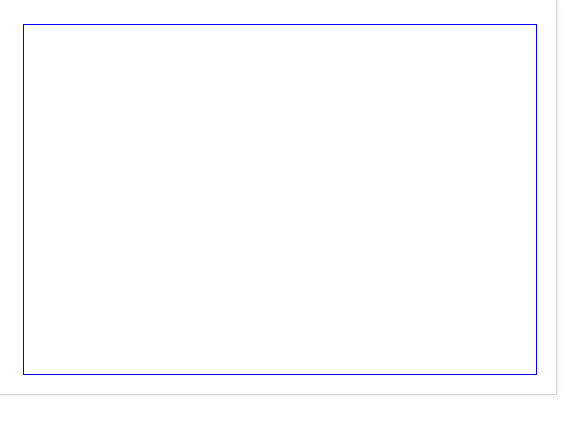
When you include the appropriate template for your desired page size and declare a .page and .subpage <div> element. You will note that you now have something on screen that represents the page size of the PDF you are developing. This will include a margin outlined in blue.
When wkgtk-html2pdf is installed locally copies of all of the style sheets are located in /usr/share/wk2gtkpdf/ and can be linked thus:
/usr/share/wk2gtkpdf/templates
For a full list of themplates see https://wkgtk-html2pdf/templates
<link="stylesheet" href="https://wkgtk-html2pdf/templates/A4-portrait.css>"
By default the template margins are set to the IEEE standard for technical documenatation (Horizontal: 16.9mm; Vertical: 15.8mm) however this can easily be modified in the page template stylesheet to whatever best suits your requirements.
To change the margins modify the values assigned to the following variables in the appropriate template:
Careful consideration is required when defining custom page sizes; your dimensions must result in a whole number of points to prevent the rendering engine from drifting. The high-precision millimetre values used in our templates are calculated specifically to achieve a perfect, integer Point (pt) value based on the 72 DPI (Points Per Inch) standard.
For US/Imperial page sizes it is a simple matter of dividing the page size by 72.
For ISO/Metric page sizes the calculation is a little more complex.
In all likelihood, if you are looking to set up a custom page size then you are going to want to convert from mm to points. To do so, for both metric and imperial page sizes is is simply ac case of flipping the calculation.
If you require a custom layout of 178mm x 223mm, you must first find the nearest whole-point equivalent to ensure zero-drift rendering:
To ensure 100% parity between your CSS and the hardware, you must "snap" your height calculation to a whole pixel value before assigning it to your page container.
Finally, convert these integer points back into the high-precision millimetre
values required for your CSS :root variables:
:root {
--page-width: 178.1528;
--page-height: 222.9556;
}
While anchoring your layout to Integer Points (pt) ensures typographic consistency and prevents "baseline creep," a secondary calculation is required to satisfy the browser’s internal rendering engine (Webkit/Blink/etc.).
Browsers do not "paint" in millimetres or points; they paint in Physical Pixels (px). At the standard web resolution of 96 DPI, one pixel is exactly 0.75pt. If your calculated page height results in a fractional pixel (e.g., 1190.55pt), the rendering engine will often truncate or "floor" this value to the nearest whole pixel to fit the physical display or print buffer.
By using this formula, you are essentially pre-calculating the browser's "Hard Ceiling."
In our templates, this is handled automatically via CSS Variables in the :root block. By rounding down to the nearest pixel, we guarantee that the content area is always exactly equal to, or infinitesimally smaller than, the physical paper—resulting in zero-drift , zero-overflow rendering at any size.
In our templates, this is handled automatically via CSS Variables in the :root block. By rounding down to the nearest pixel, we guarantee that the content area is always exactly
While the Raster Logic manages the outer page internal container calculations ensure that every line of text sits perfectly on a predictable physical pixel.
Standard CSS line-heights (like 1.5 or 1.4) often result in fractional pixels (e.g., 16.8px) which may cause unexpected display anomalies. The same applies to font sizes eg. 16pt.
To achieve zero-drift all objects need to be declared in whole pixel values that are reconcilable with the point unit scale.
Each default template has a margin that is visible to the compositor while they are designing the manual in order to assist with visualisation of the page and to assist in hightlighting overflow.
wk2gtk-html2pdf includes a helper utility to aid with design. It is located in the same folder as the CSS templates and can be used to identify problems before trying to generate a PDF.
There are 2 versions of the linter that can be used depending on how critical your output is.
The basic linter will detect errors that will result in significant drift while the pedantic linter aims to detect most known issues.
To use the utility you need to declare it:
<script src=""/usr/share/wk2gtkpdf/overflow-monitor.js"><script>
<script src=""/usr/share/wk2gtkpdf/overflow-monitor-pedantic.js"><script>
Once declared, when you open the page in a browser it will automatically monitor changes and notify as and when it detects issues.
Depending on which version of the linter you choose determines which issues are monitored. The basic linter monitors issues that are certain to cause rendering problems while the the pedantic linter monitors issues that may cause issues.
| Issue | Basic | Pedantic | Issue |
|---|---|---|---|
| Overflow | Elements exceeding the physical page or grid boundaries. | ||
| Missing Fonts | Verification of font availability at design time. | ||
| px Declarations | Check for pixel measurement declarations. | ||
| em Declarations | Check for relative declarations. | ||
| Dirty precision | Check for sub-pixel rounding errors. |
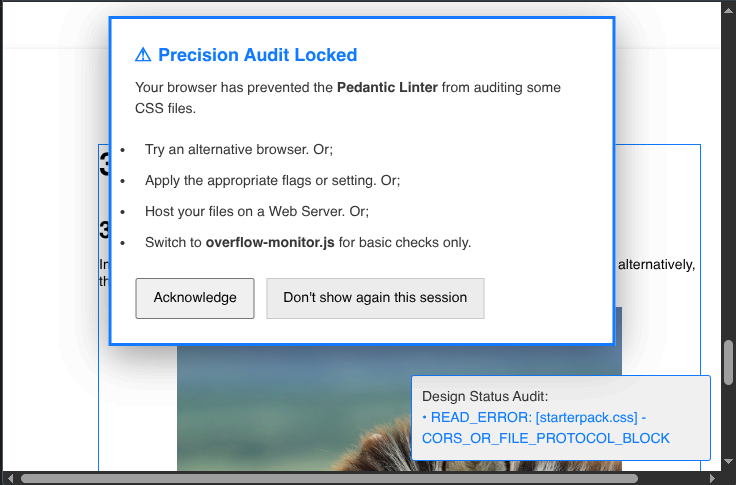
For Chrome based engines on linux try the following from the command line (replace chromium with whatever flavour of blink engine you wish to use eg. brave):
chromium --allow-file-access-from-files
In one test we had to use chromium --user-data-dir="/tmp/audit_session" --disable-web-security --allow-file-access-from-files --disable-features=BlockInsecurePrivateNetworkRequests
We have only tested firefox and in tests all seemed to work out of the box on every operating sytsem but Linux where we had to go into about:config and change security.fileuri.strict_origin_policy to false.
Despite sharing our WebKitGTK core, Epiphany’s security model is too rigid for local font auditing. Unlike Chromium or Firefox, it lacks the necessary flags to bypass the restrictions required by the linter.
To ensure your typography renders exactly as intended, please observe the following requirements:
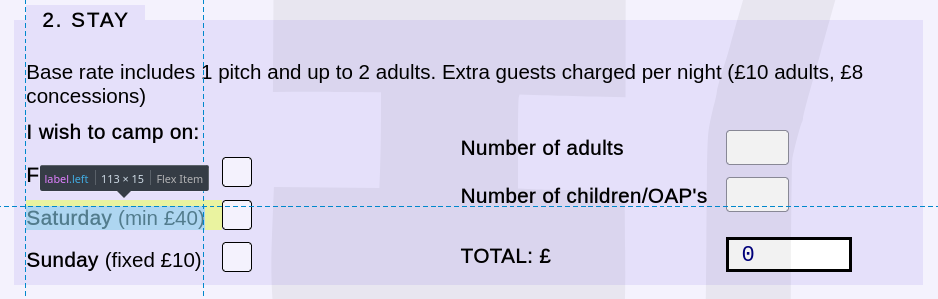
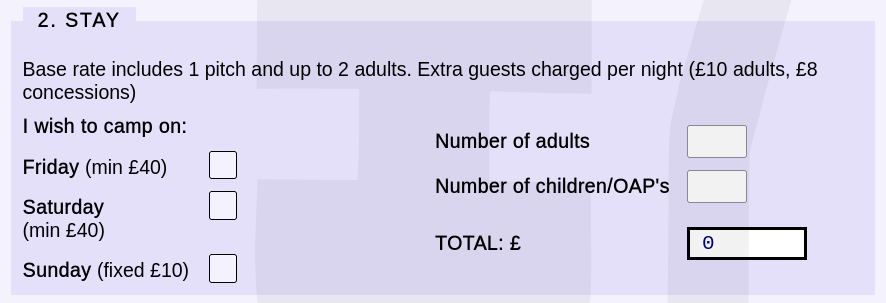
If you are generating a PDF on a different machine than the one you are developing on then you must ensure that the relevant fonts are also installed on the generator machine.
If anything, including text, is overflowing the available space the margin will turn red and the notification window will warn of a problem.
When there is a problem with overflow all the margins will turn red however the margins where overflow is present will have a thicker border.
If you see the red notification shown above, your content has exceeded the calculated subpage height. To fix this, you should:
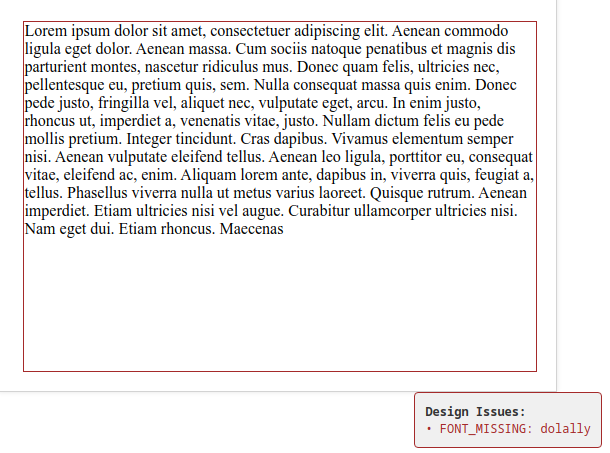
In addition to the detection of overflow it should also be capable of detecting missing fonts. This is to be considered advisory and if there are rendering issues the first thing that should be checked is the system wide availability of fonts.
Standard web typography services like Google Fonts are fully supported. Since these are remote artefacts, WebKitGTK will fetch them at render-time.
.ttf or .woff files and installing them system-wide if you need to generate PDFs in an
offline or firewalled environment (such as a secure server or CI/CD pipeline).
While you will note that the pages in this manual are numbered you will also note that they are not referenced and merely exist to give the reader a sense of familiarity; While you are welcome to use page numbers if you so wish, we strongly recommend using Section Numbers (e.g., See Section 6.2) only in your index instead.
Particular care should be taken when porting documents as the likelihood of page references remaining intact are low.
If you do wish to use page numbers for your indexing then we advise that you develop your document in the follwing order:
NOTE: It may be necessary to reflow the pagination if you amend the document.
In PDF documents it is rare for the page number determined by the reader to the the same as the page number marked at the bottom of the page; this is because PDF readers start counting from the very first page (often the document cover which is not paginated).
In this manual, as the page numbers are merely to give the reader a sense of familiarity they are automatically inserted by utilising CSS' built in counter function; this is how we do it:
To start the counter from a particualr page simply add a class of .number to that page
<div class="page number">
Once you have instantiated a .number class the following pages will automatically be paginated; it is not necessary to add .number to additional pages and will in fact cause the page counter to be reset.
Here is the CSS for the page numbering used in this manuals
div.page.number {
counter-reset: page 0;
}
div.page.number,
div.page.number ~ div.page {
counter-increment: page;
}
div.page.number div.subpage::after,
div.page.number ~ div.page div.subpage::after {
display: block;
content: " Page - " counter(page);
position: absolute;
bottom: 0px;
right: 0px;
z-index: 999;
padding: 2px 8px;
border-right: 2px solid #23b8e7;
font-size: 12px;
}
We are all used to seeing links underlined on web pages but for some it can seem an unnecessary distraction when transcribed to a PDF. Albeit subjective (as all design is) personally I like to get rid of the underline but keep the blue colour just to hint to the user that it is clickable.
To change this or any formatting specifically for pdf generation you use the @media print directive in your CSS.
@media print {
a {
text-decoration-line: none !important;
}
}
By default the blue margin used to aid design will be displayed in any HTML version; You should hide it rather than remove it to properly maintain the page dimensions.
.subpage {
border: solid white !important;
}
To accelerate development, the suite includes technical-manual.css. This is a carefully calculated baseline that provides the fundamental geometry for technical documentation.
The template is by no means mandatory, but is the quickest way to get started or to test the suite is suited to your needs is to link to it either from our templates repository or the the default folder if you have the library installed (See: 6.1 CSS Style sheets)
Depending on what we are doing we use both of these setups (sometimes even both at once), but as long as you have something to preview and something to write code on you shouldn't run into difficulties.
Without doubt our favourite IDE for developing anything HTML is Pulsar-edit.
We are reliably informed that VS Code is another solid alternative that works similarly however we haven't used it ourselves.
On the following pages we have provided the snippets that we use to speed up development in both pulsar edit and VSCode.
'.text.html.basic':
'Page and Subpage':
'prefix': 'hpage'
'body': """
<div class="page">
<div class="subpage">
$1
</div>
</div>
"""
'Code Box':
'prefix': 'hcode'
'body': """
<div class="code-container">
<div class="code-container-sub">
<pre><code>$1</code></pre>
</div>
</div>
"""
'Note':
'prefix': 'hnote'
'body': """
<div class="note-box">
<span class="note-icon">ℹ</span>
<div>
<strong>Note:</strong>
$1
</div>
</div>
"""
'Warning':
'prefix': 'hwarn'
'body': """
<div class="warning-box">
<span class="warning-icon">⚠</span>
<div>
<strong>WARNING:</strong>
$1
</div>
</div>
"""
...cont'd
'Important':
'prefix': 'himportant'
'body': """
<div class="important-box">
<span class="important-icon">★</span>
<div>
<strong>IMPORTANT:</strong>
$1
</div>
</div>
"""
{
"Page and Subpage": {
"prefix": "hpage",
"body": [
"<div class=\"page\">",
" <div class=\"subpage\">",
" $1",
" </div>",
"</div>"
],
"description": "Insert page and subpage container"
},
"Code Box": {
"prefix": "hcode",
"body": [
"<div class=\"code-container\">",
" <div class=\"code-container-sub\">",
" <pre><code>$1</code></pre>",
" </div>",
"</div>"
]
},
...cont'd
"Note": {
"prefix": "hnote",
"body": [
"<div class=\"note-box\">",
" <span class=\"note-icon\">ℹ</span>",
" <div>",
" <strong>Note:</strong> $1",
" </div>",
"</div>"
]
},
"Warning": {
"prefix": "hwarn",
"body": [
"<div class=\"warning-box\">",
" <span class=\"warning-icon\">⚠</span>",
" <div>",
" <strong>WARNING:</strong> $1",
" </div>",
"</div>"
]
},
"Important": {
"prefix": "himportant",
"body": [
"<div class=\"important-box\">",
" <span class=\"important-icon\">★</span>",
" <div>",
" <strong>IMPORTANT:</strong> $1",
" </div>",
"</div>"
]
}
}
If you love vim then you probably don't need us to tell you how to set up your environment but in testing we have found that previewing the output with Falkon browser results in the almost real time updates on save without need to manually refresh the page refresh. While probably not the world's greatest browser for daily internet use we have found it the best solution for live previewing while using your favourite text editor (be that vim, nano, or something less hardcore) to design your pages.
Unlike traditional "Headless" PDF generators that function as black boxes, the wkgtk-html2pdf engine includes a built-in forensic calibration suite. We do not ask you to trust our coordinate mapping; we provide the tools to verify it.
A PDF is a physical map. Even a 0.1pt rounding error in a CSS rendering engine can lead to Point-Creep, where content subtly shifts over a long document. By using the --calibrate flag, you generate a 150-page "Stress
Test" that proves the engine's 1:1 parity between the virtual DOM and the physical page.
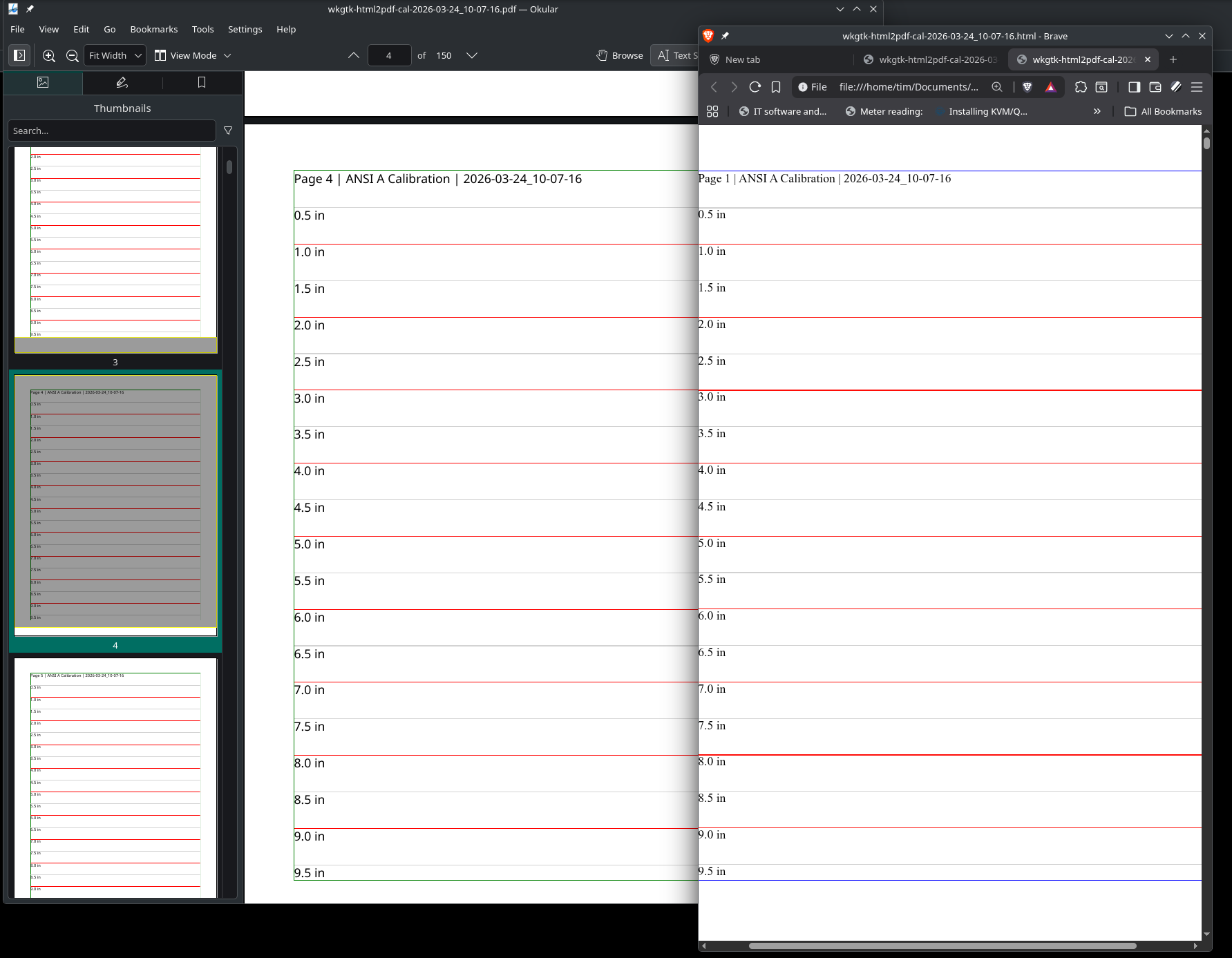
The calibrator generates both a .pdf and an .html file from a single internal source. This creates a "Digital Reference" that allows for a three-stage validation:
Because the engine relies on the host system's WebKit and font libraries, we recommend a calibration pass during the following "High-Stakes" events:
The Calibrator is not just a technical test; it is a Contractual Safeguard. Always run a calibration pass before signing off on externally developed templates to ensure they adhere to the physical geometry of the 'Cage' Standard.
To ensure the engine is performing as it should you first need to generate the test documents using the command line interface.
wkgtk-html2pdf will generate a US ANSI A or ISO A4 standard page test document depending on the given command line argument; Both documents will have the same IEEE margins.
wkgtk-html2pdf --calibrate US
Upon completion 2 files will be generated; these files will be located in the folder where you ran the command and will be named wkgtk-html2pdf-cal- appended with a timestamp and the appropriate extension .pdf or .html
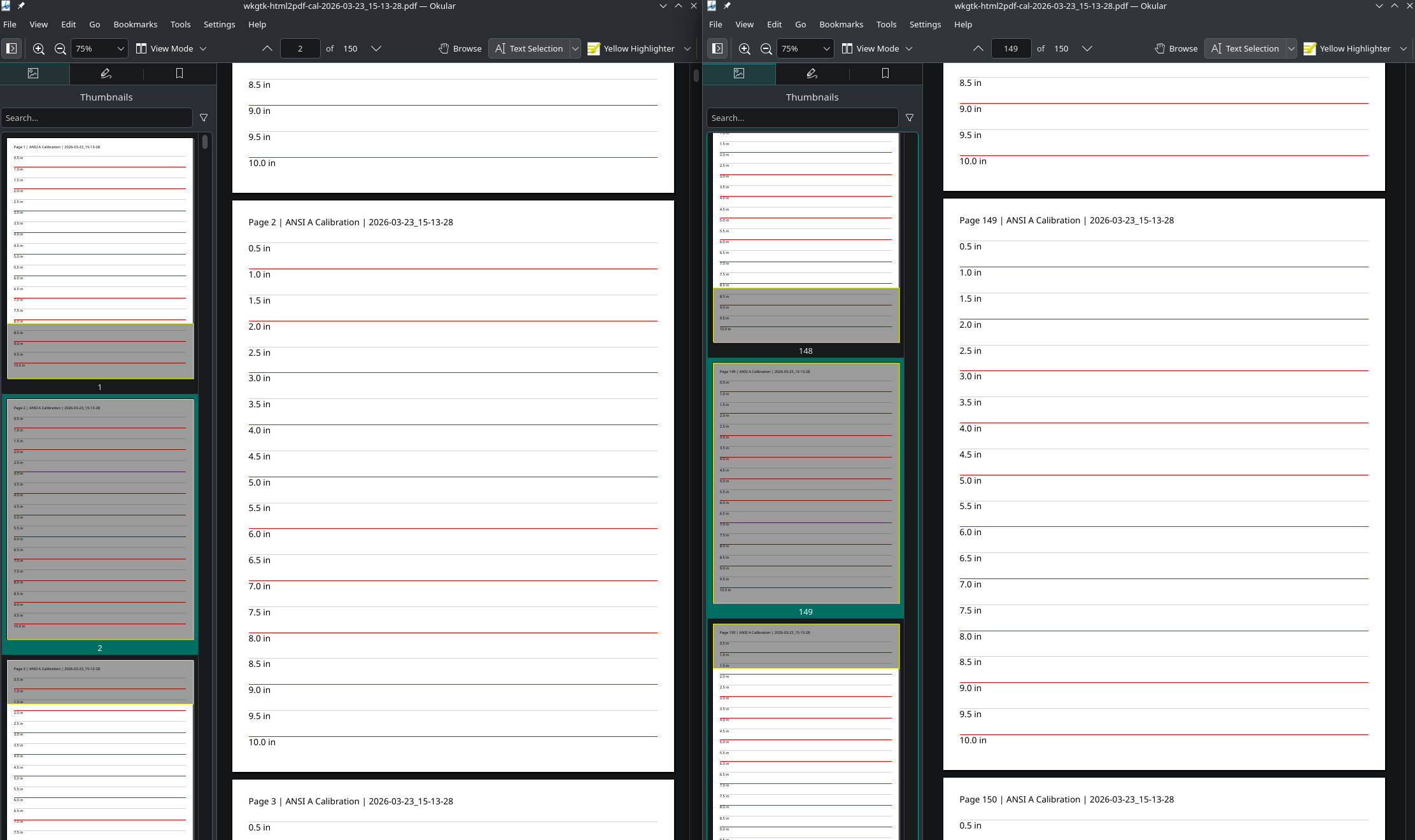
HTMM doesn't actually generate pages at all so the engine is entirely reliant on coordinates to construct a PDF from an HTML layout. If these coordinates are incorrect (even by as little as a pixel) this will result in an accumulative creep problem where whole lines will be cropped appear on the wrong page. To ensure the engine isn't causing this look at the first page and the last page of the test document and they should be identical.
During development of the library, the command line interface and the templates we tested browser from Falkon on KDE to Chrome on Microsoft Windows and managed to ensure parity throughout the spectrum however we have no control over the future development of browsers and therefor highly recommend that you calibrate your browser regularly.
To conduct the test
Testing printer calibration is simply a matter of printing a page out and measuring it. The margins for both US and ISO page sizes have been explicitly set to:
Most printers have a tolerance level set by the manufacturers, please be aware that the best that can be expected is within that tolerance.
To ensure that the resultant PDF is an accurate representation of the HTML and to aid in troubleshooting we recommend these guideline are followed:
The wkgtk-html2pdf library provides a professional-grade C++ interface designed for high-performance document automation. Starting with Version 1.0.0, the API utilizes the Pimpl (Pointer to Implementation) idiom, ensuring a stable Application Binary Interface (ABI). This allows the internal rendering engine to be updated without requiring the host application to be recompiled.
The wkgtk-html2pdf C++ API is designed for professional document automation where long-term binary compatibility is a requirement. To achieve this, the library adheres to two core principles:
Every public-facing class such as PDFprinter and html_tree utilises the Pointer to Implementation (Pimpl) idiom. The header files contain no private members from third-party libraries (WebKit, PoDoFo, or GLib).
For non-GTK host applications, the rendering engine utilizes a Thread-Safe Singleton pattern to manage the underlying GTK environment.
icGTK::init();
This method must be invoked before any PDF generation calls are executed. It initializes the heavy WebKit infrastructure within a dedicated worker thread, isolating the GTK initialisation from your application's main execution loop. As a "Set-and-Forget" object, it provides no public getters or state manipulators; its sole purpose is to maintain the lifecycle of the rendering thread.
The html_tree class allows for programmatic construction of well-formed HTML without manual string concatenation. cpp
#include <wk2gtkpdf/ichtmltopdf++.h>
// 1. Create the Root
phtml::html_tree dom("html");
// 2. Nest Elements
phtml::html_tree *body = dom.new_node("body");
phtml::html_tree *h1 = body->new_node("h1");
// 3. Set Content (ABI-safe strings)
h1->set_node_content("Professional PDF Report");
// 4. Extract HTML string
phtml::process_nodes(&dom);
const char *html = dom.get_html();
// 5. Cleanup
phtml::PDF_FreeHTML(html);
The PDFprinter class manages the conversion of HTML strings into PDF documents or raw binary data.
#include <wk2gtkpdf/ichtmltopdf++.h>
// Initialize the Global GTK Loop (Call once)
icGTK::init();
phtml::PDFprinter pdf;
// Set input HTML and Output filename
pdf.set_param(html, "report.pdf");
// Set Layout parameters
pdf.layout("A4", "portrait");
// Execute Rendering
pdf.make_pdf();
For advanced workflows (e.g., post-processing with ImageMagick), the library can return the PDF as a raw memory buffer.
pdf.set_param(html); // No filename provided = BLOB mode
pdf.make_pdf();
// Retrieve Binary Data
phtml::PDF_Blob binDat = pdf.get_blob();
// ... process binDat.data (size: binDat.size) ...
// Explicitly free the library-allocated memory
phtml::PDF_FreeBlob(binDat);
To facilitate dynamic content generation, the API includes printf-style helpers that handle internal buffering automatically.
new_node_f(const char *format, ...)
set_node_content_f(const char *format, ...)
The wkgtk-html2pdf engine provides three distinct modes for generating PDF sidebar bookmarks (the document outline). This is controlled via the phtml::index_mode enumeration.
When calling the rendering methods, you must pass one of the following flags:
| Constant | Description |
|---|---|
| index_mode::OFF | Default. No sidebar bookmarks are generated. |
| iindex_mode::CLASSIC | Scrapes all <a> tags with internal # anchors.See 4.1 Classic mode |
| index_mode::ENHANCED | Only indexes elements explicitly marked with the index-item class. See 4.2 Enhanced mode |
To enable indexing within your C++ application, pass the mode as the third argument to the parameter setup function.
#include <wk2gtkpdf/ichtmltopdf++.h>
// 1. Initialise the printer
phtml::PDFprinter pdf("file:///path/to/resources/");
// 2. Set parameters with Indexing Mode
// Signature: set_param_from_file(const char* infile, const char* outfile, index_mode mode)
phtml::index_mode myMode = phtml::index_mode::ENHANCED;
pdf.set_param_from_file("input.html", "output.pdf", myMode);
// 3. Configure layout and render
pdf.layout("A4", "portrait");
pdf.make_pdf();
Because a single Linux process cannot safely load both libgtk-3 and libgtk-4 simultaneously, wkgtk-html2pdf is distributed in two distinct builds. Selecting the correct version depends entirely on your application's environment.
The library supports both GTK3 (WebKit 4.1) and GTK4 (WebKit 6.0) targets. Thanks to our Pimpl-shielded architecture, the headers and public API symbols remain identical across both versions. To switch your build target, simply update your pkg-config flags:
Attempting to link a GTK3-based host application against the GTK4 version of the library (or vice-versa) will result in an immediate Segmentation Fault or a Critical Gdk-Error at startup. This is not a limitation of the library, but a fundamental restriction of
the GTK display backend, which cannot coexist with multiple global versions in a single process space.
Ensure that your build target matches your host environment as described in Section 9.7.1.
As WebKitGTK requires a valid display surface to initialize the rendering pipeline, libwk2gtkpdf is bundled with a dedicated background service. This service manages a virtual framebuffer (Xvfb), providing a "Ghost Display" when no physical hardware is available.
For high-availability services (such as automated statement delivery), the engine must be decoupled from the main application thread. This ensures that the "heavy lifting" of WebKit rendering does not block your application’s supervisory logic or network listeners.
The recommended lifecycle for a long-running service involves initializing the global singleton in your main() entry point and delegating the document production to a dedicated worker thread.
int main(int argc, char** argv) {
// 1. Initialize the Global GTK Context (Once per lifetime)
icGTK::init();
// 2. Spawn the Industrial Delivery Thread
std::thread t1(& {run_statement_delivery_service();});
t1.join();
return 0;
}
This pattern has been forensically verified for stability. During a 20-day "Longevity Audit" of the Inplicare Automated Account Statement service, this exact implementation demonstrated:
The most critical failure point for a headless service is the termination of the Xvfb display server. Because WebKitGTK maintains a persistent connection to the display surface, the loss of Xvfb will cause an immediate, unrecoverable crash of your host application.
libwk2gtkpdf communicates directly with the systemd-logind and D-Bus bus. If the mandatory xvfb.service is inactive, the engine will:
[Unit]
Description=Foo Daemon
# Ensure the network is up so we can fetch assets or talk to APIs
After=network-online.target
Wants=network-online.target
# Prevent the service from infinite-looping if it fails
StartLimitIntervalSec=60s
StartLimitBurst=5
[Service]
# self-healing policy
Restart=on-failure
RestartSec=5s
# The user/group should have write access to your logs and temp folders
User=bar
Group=bar
Type=simple
ExecStart=/usr/bin/your-daemon-name --verbose --config /etc/foo/config.json
# Clean shutdown handling
KillMode=process
ExecReload=/bin/kill -HUP $MAINPID
[Install]
# This ensures the daemon starts automatically at boot
WantedBy=multi-user.target
To prevent the engine from waiting for desktop-only services, init() explicitly neuters the following background portals: